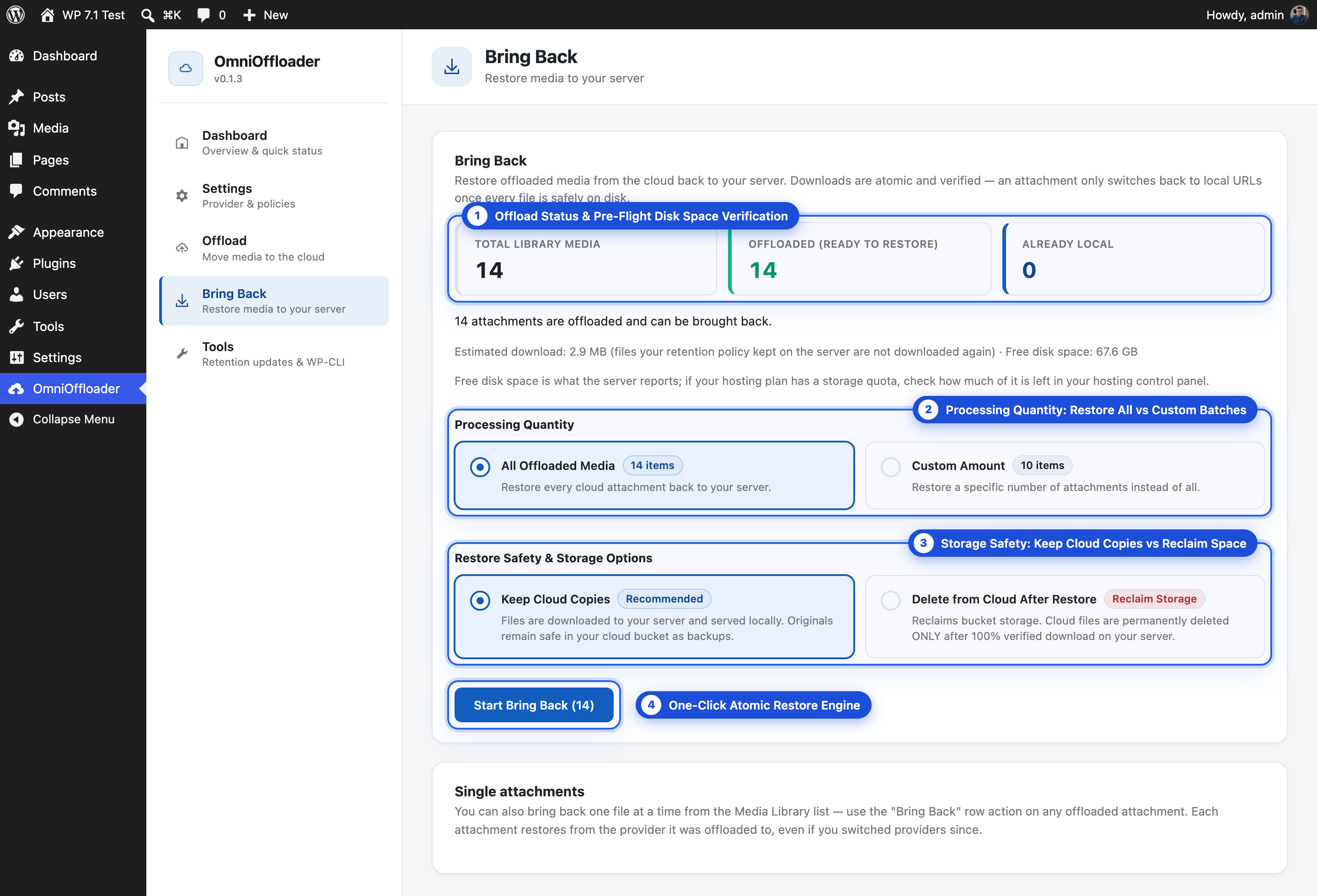
Offloading should never be a one-way door. Bring Back downloads your media from the cloud to its original place on your server, checks that every file arrived, and then serves it locally again.
You can bring back a single attachment, a set number, or your whole library.
Verified downloads
An attachment only switches back to local URLs once every file is safely on disk.
Cloud copy kept
By default your cloud files stay in the bucket as a backup.
Disk check first
A preflight shows how much space the restore needs before it starts.
Any provider
Each attachment restores from the provider it was offloaded to, even if you switched providers since.
Before you deactivate or remove OmniOffloader while using Smart Local Cleanup or Full Cloud Migration. Those policies deleted local files, so without Bring Back your site would point at files that are no longer on the server.
You want to stop using cloud storage, or move to a different host.
You need local originals for image editing or regenerating thumbnails after a Full Cloud Migration.
Before you start, Bring Back estimates what the restore needs:
Estimated download: only the files that are actually missing from your server. Files your retention policy kept on the server are not downloaded again. For a custom amount, it shows the estimate for that batch and for the full library.
Free disk space: what the server reports right now.
Space left in your hosting plan (cPanel hosting): read from cPanel’s own quota record, for example “9.3 GB of 10 GB”, together with when cPanel last updated it.
If the free space may not be enough, you see a warning: “Free up space before starting.”
Bring Back watches for the server refusing to save a file (“Disk quota exceeded”, “No space left on device”). When that happens, the run stops right away with a clear out of disk space message, instead of failing download after download.
Nothing is lost. Attachments that were not brought back stay in the cloud and keep working. Free up space, then start Bring Back again; it continues with what is left.
Atomic writes. Each file is downloaded to a temporary file first and moved into place only when it is complete. A half-downloaded file never replaces a good one.
Verified before switching. URLs only switch back to local once every file of the attachment is on disk.
Cloud deletion is opt-in. Deleting cloud files is off by default. When on, a cloud file is only deleted after the local copy is verified.
Confined to uploads. Restores never write outside your WordPress uploads folder.
Partial downloads cleaned up. If the server stops a restore mid-file, the leftover temporary file is removed.
One job at a time. Bring Back never runs together with Bulk Offload or a retention update. A single-item Bring Back is refused while a retention update is running.
Files that are still on your server are checked against the cloud with one request per attachment. Missing files download side by side, following your Transfer Speed setting.
For large libraries, WP-CLI is usually faster and needs no open browser tab:
In Safe mode, Bring Back is turned off and hidden. To download media from the cloud to a copy of your site, turn on Allow Bring Back on a copy (download only) in Settings. The cloud copy is then always kept, even if “delete from cloud” is requested.