
Long runs and log files
A big job, such as offloading tens of thousands of attachments, can take hours. This page shows how to run it so it keeps going after you close the terminal, how to follow its progress in a log file, and how to work out how long it still needs.
Everything here works the same for offload, restore, retention and move. The examples use offload; Commands for each job lists the others.
You can also run the job inside screen or tmux: start it there, detach, and reattach later to see its progress bar.
1. Start the job with a log file
Section titled “1. Start the job with a log file”Connect to your server over SSH, go to your WordPress folder, and run:
nohup wp omnioffloader offload --all > ~/offload.log 2>&1 &What each part does:
| Part | What it does |
|---|---|
nohup |
Keeps the job running when you close the terminal or your connection drops. |
wp omnioffloader offload --all |
The job itself. Add any options you need, such as --concurrency=32. |
> ~/offload.log |
Writes everything the job prints into the file offload.log in your home folder. |
2>&1 |
Writes error messages into the same file. |
& |
Runs it in the background, so you get your prompt back right away. |
The terminal answers with something like this. It is not an error: it is the job number and the process number of your job.
[1] 2480717Commands for each job
Section titled “Commands for each job”Copy the one you need. Each one runs in the background and writes to its own log file in your home folder.
| Job | Command |
|---|---|
| Offload everything | nohup wp omnioffloader offload --all > ~/offload.log 2>&1 & |
| Offload faster on a VPS | nohup wp omnioffloader offload --all --concurrency=64 > ~/offload.log 2>&1 & |
| Bring Back everything, keep the cloud copies | nohup wp omnioffloader restore --all > ~/restore.log 2>&1 & |
| Bring Back faster on a VPS | nohup wp omnioffloader restore --all --concurrency=32 > ~/restore.log 2>&1 & |
| Bring Back, then delete the cloud copies | nohup wp omnioffloader restore --all --delete-cloud --yes > ~/restore.log 2>&1 & |
| Apply the saved retention policy | nohup wp omnioffloader retention --yes > ~/retention.log 2>&1 & |
| Apply it faster on a VPS | nohup wp omnioffloader retention --concurrency=32 --yes > ~/retention.log 2>&1 & |
| Move media into the current folder | nohup wp omnioffloader move --all --yes --concurrency=32 > ~/move.log 2>&1 & |
Run a dry run in the terminal first if you are not sure what a job will do: add --dry-run and leave out nohup, & and the log file.
If WordPress is not in the folder you are in, add --path=/path/to/wordpress after wp.
2. Check that it started
Section titled “2. Check that it started”Wait a few seconds, then look at the start of the log:
head -n 5 ~/offload.log[2026-10-06 11:30:12] Started offload of 63966 attachment(s), process 2480717.[2026-10-06 11:30:16] 25 of 63966 done, 0 failed.[2026-10-06 11:30:21] 50 of 63966 done, 0 failed.Or ask the plugin:
wp omnioffloader statusRunning now: WP-CLI offload (in the background, process 2480717) Progress: 50 of 63,966 (0.1%), 0 failed Started: 2026-10-06 11:30 (23 secs ago) Transfers: 64 files at once Log: /home/example/offload.log (watch it: tail -f /home/example/offload.log) Stop: wp omnioffloader stopIf you see this, the job is running and you can close the terminal.
If the log shows an error instead, or status shows nothing running, see If something goes wrong.
3. Watch the log
Section titled “3. Watch the log”| To see… | Run |
|---|---|
| New lines as they arrive | tail -f ~/offload.log |
| The last few lines | tail -n 20 ~/offload.log |
| Only the progress lines | grep "done," ~/offload.log | tail -n 5 |
| The beginning | head -n 10 ~/offload.log |
| The whole log, page by page | less ~/offload.log (Space for the next page, q to quit) |
| A short summary, without the log | wp omnioffloader status |
In the admin screens
Section titled “In the admin screens”You can also follow the job from WordPress. While it runs, the Offload, Bring Back and Tools screens show which WP-CLI job is running, with the same figures as wp omnioffloader status: progress, failures, start time, speed, time left and expected finish, files at once, the process and the log file. Their Start buttons wait until the job ends, since only one job runs at a time.
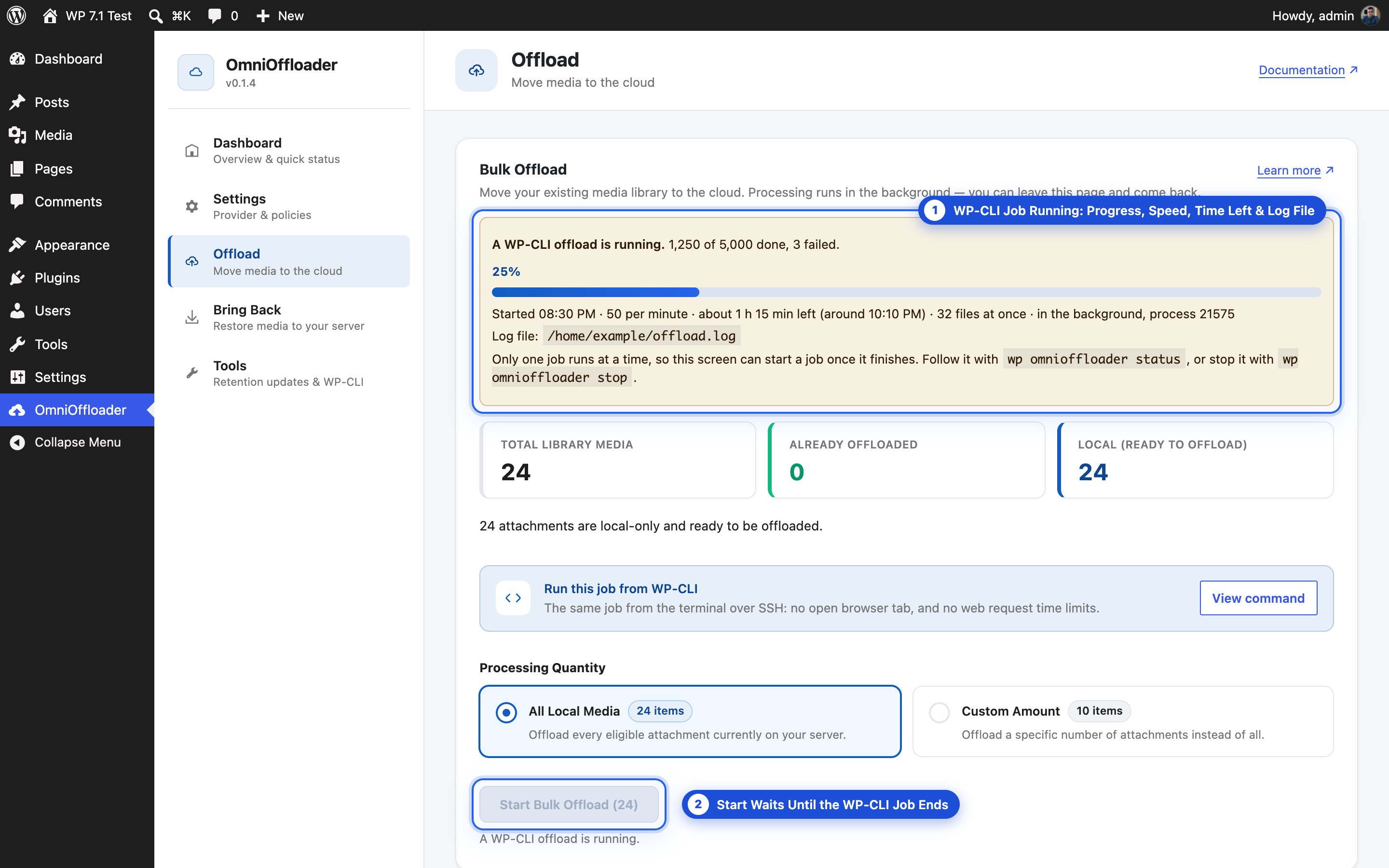
The screens check when you open them or come back to the tab, and while a WP-CLI job runs they update every 5 to 15 seconds. With no job running they make no extra requests.
What the lines mean
Section titled “What the lines mean”| Line | Meaning |
|---|---|
[time] Started offload of 63966 attachment(s), process 2480717. |
The job started. The number is how many attachments it will work through. |
Uploading up to 64 files at once. |
Only with --concurrency: how many files upload at the same time. restore says Downloading, move says Moving; retention says Checking up to 32 attachments in cloud storage at once. for a stricter policy. |
[time] 1200 of 63966 done, 0 failed. |
Progress, written every 25 attachments. |
[time] Ended. |
The job finished or was stopped. |
Success: 63966 attachment(s) offloaded. |
Everything worked. |
Warning: 63940 offloaded, 26 failed … |
Most worked; some attachments failed. See When it is finished. |
The log can also contain warnings from your theme or other plugins, such as Undefined array key "QUERY_STRING". WP-CLI loads your whole site, so their notices end up in the log too. They don’t come from OmniOffloader and don’t affect the job.
4. Work out the speed and time left
Section titled “4. Work out the speed and time left”The quickest way: run wp omnioffloader status. After the first minute it shows the speed, the time left and the expected finish time:
Speed: 201 attachments per minute Time left: about 5 hours 5 mins (finishes around 2026-10-06 16:48, site time)To work it out yourself, take two progress lines and compare them. For example:
[2026-10-06 11:33:59] 675 of 63966 done, 0 failed.[2026-10-06 11:43:18] 2550 of 63966 done, 0 failed.- Done in between: 2,550 − 675 = 1,875 attachments
- Time in between: 9 min 19 s ≈ 9.3 minutes
- Speed: 1,875 ÷ 9.3 ≈ 201 per minute
- Left: 63,966 − 2,550 = 61,416 attachments
- Time left: 61,416 ÷ 201 ≈ 305 minutes ≈ 5 hours
Or let the server work it out. On a Linux server, this reads the log and prints the speed, the time left and the expected finish time (server clock):
S=$(grep -m1 "Started" ~/offload.log | cut -c2-20); L=$(grep "done," ~/offload.log | tail -1); N=$(echo "$L" | awk '{print $3}'); T=$(echo "$L" | awk '{print $5}'); E=$(echo "$L" | cut -c2-20); EL=$(( $(date -d "$E" +%s) - $(date -d "$S" +%s) )); echo "Done: $N of $T | Speed: $(( N * 60 / EL ))/min | Time left: $(( (T - N) * EL / N / 3600 ))h $(( (T - N) * EL / N / 60 % 60 ))m | Finish: $(date -d "@$(( $(date +%s) + (T - N) * EL / N ))" '+%H:%M')"Done: 2550 of 63966 | Speed: 194/min | Time left: 5h 15m | Finish: 16:58Run it again later for a fresh estimate. It gets more accurate the longer the job runs.
5. Test the speed before a big run
Section titled “5. Test the speed before a big run”Before offloading a whole library, time a short run of 500 attachments. You don’t need nohup for a test of a few minutes:
time wp omnioffloader offload --all --limit=500time wp omnioffloader offload --all --limit=500 --concurrency=32time wp omnioffloader offload --all --limit=500 --concurrency=64time prints how long each run took (real). Then estimate the full library:
total time ≈ time for 500 × (your number of attachments ÷ 500)
An example from a VPS with 65,000 attachments:
| Run | 500 attachments | 65,000 attachments |
|---|---|---|
| Default | 13 min 30 s | about 29 hours |
--concurrency=32 |
3 min 14 s | about 7 hours |
--concurrency=64 |
2 min 21 s | about 5 hours |
Your numbers depend on your server’s upload speed and your files. Many small images gain the most; a few large videos gain the least. Each test run moves different attachments (the next 500), so compare the rough speed, not exact seconds.
6. Stop, continue, or let it finish
Section titled “6. Stop, continue, or let it finish”Stop it, from any terminal:
wp omnioffloader stopThe job finishes the files it is uploading, then exits. Nothing is left half done.
You can also end it with kill and the process number from status or the top of the log (kill 2480717). The job then stops at once instead of finishing its current files, and cleans up like stop does (when PHP’s pcntl extension is available). Use stop when you can.
Continue later by running the same command again. Attachments that are already done are skipped, so it carries on where it stopped:
nohup wp omnioffloader offload --all > ~/offload.log 2>&1 &This starts a new log. Use a different file name (~/offload-2.log) to keep the old one.
When it is finished
Section titled “When it is finished”The last lines of the log show the result:
tail -n 3 ~/offload.logSome failures are normal on a big, old library. Find them in Media → Library (list view): a failed item shows Failed — … or Offload failed in the OmniOffloader status column, with its error.
| Error | Meaning |
|---|---|
| Main file is missing locally. | The attachment’s file is no longer on the server, so there is nothing to upload. It was already broken before the offload. Restore the file from a backup, or delete the attachment if nothing uses it. |
| Upload failed for “…” | The upload itself failed (network, storage provider). Run the same command again: failed attachments are retried, last in line. If many fail with --concurrency, try a lower number. |
Then delete the log:
rm ~/offload.logIf something goes wrong
Section titled “If something goes wrong”| What you see | What to do |
|---|---|
| The log ends after a second with a PHP error | The job never started. Read the first lines (head -n 10 ~/offload.log). An error in wp-config.php or a plugin stops WP-CLI before OmniOffloader runs. Check that wp option get home works. |
Error: A bulk offload started from the admin screen is running… |
Only one job runs at a time. Wait for it to finish, or cancel it on the admin screen. |
Error: Safe mode is on… |
The site looks like a staging or local copy, so nothing is uploaded. See Safe mode. |
Success: Nothing to offload. |
Everything is already offloaded. |
status says the run ended without cleaning up |
The job was killed (for example, the server restarted). Start the same command again; it continues where it stopped. |
| Some media still shows Offloading… after the job ended | The job was killed so hard that it couldn’t clean up (kill -9, a server restart). Run wp omnioffloader stop or start the command again: either one finds the job gone and resets those attachments. |
| The job stopped when you closed the terminal | It was started without nohup (or without &). Start it again as shown in step 1; it continues where it stopped. |
Error: … cannot be answered without a terminal … Add --yes. |
The job would ask a question (Bring Back with --delete-cloud, retention, or move without --keep-old), which a background job can’t answer. Add --yes. |
nohup: ignoring input at the top of the log |
Normal. nohup says it won’t read from the keyboard. |