
Staging & Dev Copies (Safe Mode)
When you copy your site (with a backup or migration plugin, your host’s staging tool, or to your own computer), the copy carries the live site’s settings and access keys. Without protection, the copy would:
- upload into the live bucket, where a new file with the same name could overwrite one the live site added later, and
- with Mirror Delete on, delete files the live site still uses.
OmniOffloader recognises a copy automatically and switches to Safe mode.
How a copy is detected
Section titled “How a copy is detected”Safe mode turns on when any of these is true:
- The site address changed from the one recorded as live. The live address is recorded when you first set up a provider. It is stored as a fingerprint, so a migration tool’s search-and-replace cannot hide the change.
- WordPress reports a staging, development or local environment (
WP_ENVIRONMENT_TYPE). Many managed hosts and local tools set this for you. - The site runs on a local address, such as
localhost,127.0.0.1, or a name ending in.local,.localhost,.test,.invalidor.example.
The site address is read from your saved Site Address setting. Multilingual sites with a different domain per language (WPML, Polylang) are never mistaken for a copy.
What Safe mode does
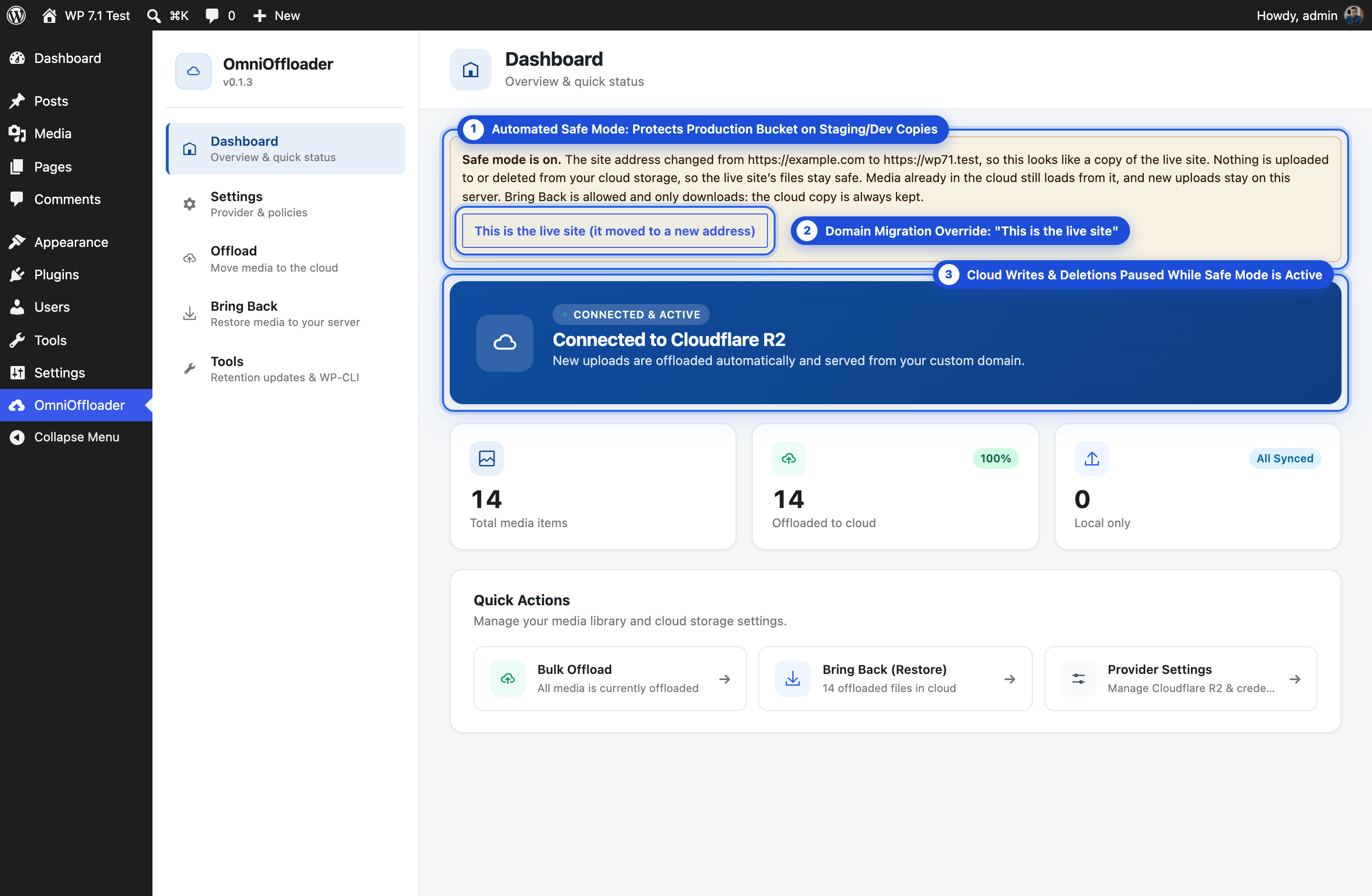
Section titled “What Safe mode does”In Safe mode, nothing is uploaded to or deleted from your cloud storage:
- New uploads stay on the copy’s own server.
- Media already in the cloud keeps loading from it. URL rewriting keeps working.
- Mirror Delete does not run.
- Bulk Offload, the offload links in the Media Library and
wp omnioffloader offloadare turned off. - Bring Back is turned off and hidden too, unless you allow it (see below).
A banner at the top of the OmniOffloader screens explains that Safe mode is on, and why.
Staging & Dev Copies settings
Section titled “Staging & Dev Copies settings”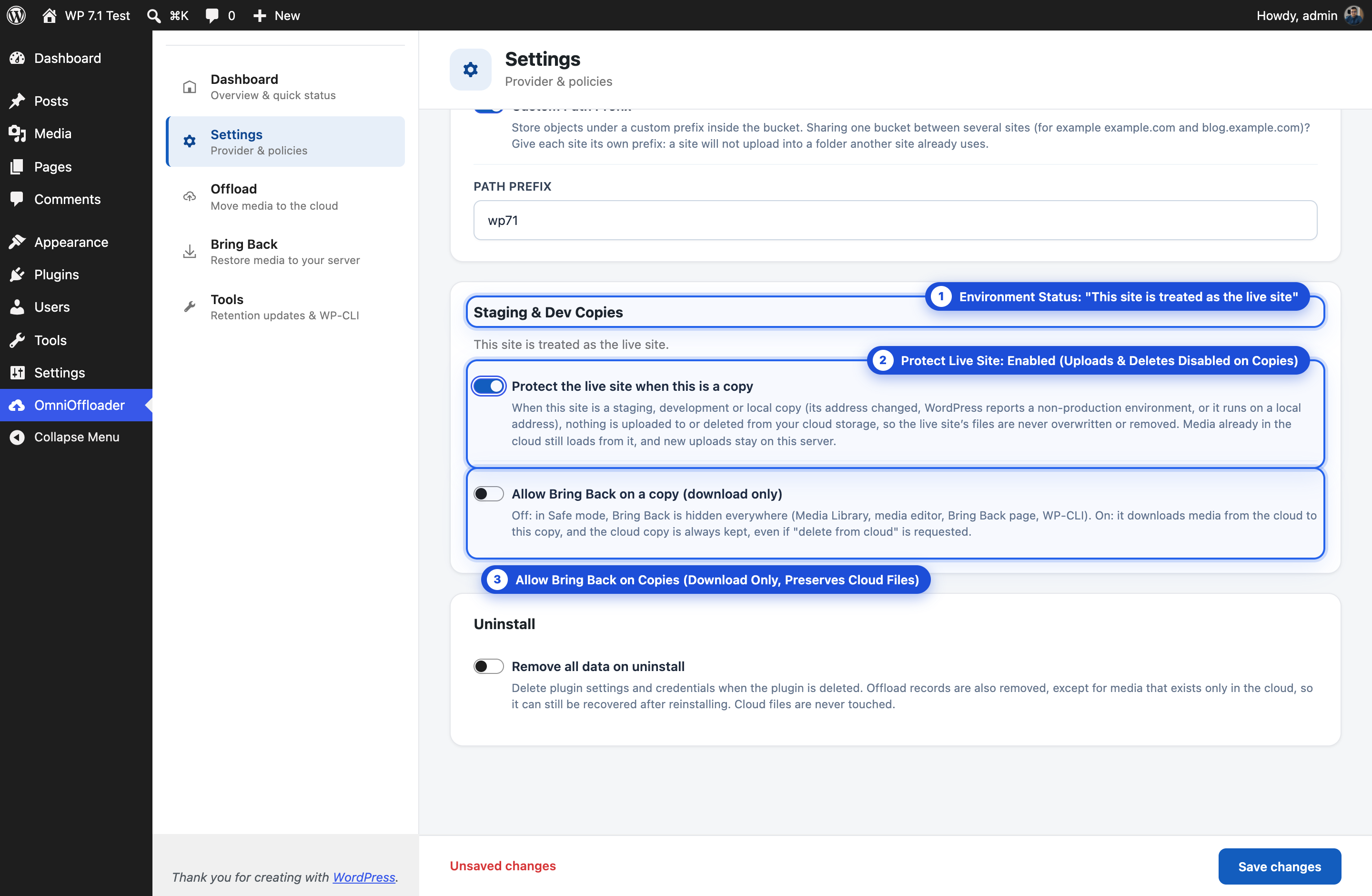
Allow Bring Back on a copy
Section titled “Allow Bring Back on a copy”Sometimes you want real media files on a staging or local copy. Turn on Allow Bring Back on a copy (download only) in Settings → Staging & Dev Copies.
Bring Back then only downloads. The cloud copy is always kept, even if “delete from cloud” is requested. wp omnioffloader restore works too, but never with --delete-cloud.
If the live site really moved
Section titled “If the live site really moved”If your live site moved to a new domain, Safe mode turns on because the address changed. To tell OmniOffloader that this is still the live site:
-
Open any OmniOffloader screen. The Safe mode banner shows the old and new address.
-
Click This is the live site (it moved to a new address).
-
The new address is recorded as live, and Safe mode turns off.
This button only clears a Safe mode caused by an address change. If Safe mode comes from the environment type or the constant below, change those instead.
Turn Safe mode on or off yourself
Section titled “Turn Safe mode on or off yourself”In Settings: turn off Protect the live site when this is a copy (in Settings → Staging & Dev Copies) to disable automatic detection. It is on by default.
In wp-config.php: a constant overrides both the detection and the setting:
// Always Safe mode (for example on a staging server)define( 'OMNIOFFLOADER_SAFE_MODE', true );
// Never Safe modedefine( 'OMNIOFFLOADER_SAFE_MODE', false );Check the mode from WP-CLI
Section titled “Check the mode from WP-CLI”wp omnioffloader status shows whether Safe mode is on. See wp omnioffloader status.
Another site’s folder
Section titled “Another site’s folder”Safe mode also turns on when the bucket folder you use belongs to another site. That case is not a copy, so the setting and constant above do not switch it off. See Sharing one bucket.