
wp omnioffloader move
Moves offloaded media into the folder new offloads go to, including media offloaded to an earlier provider or bucket. The admin screen with the same job is OmniOffloader → Tools → Move Media to the Current Folder, shown when some media is outside the current folder.
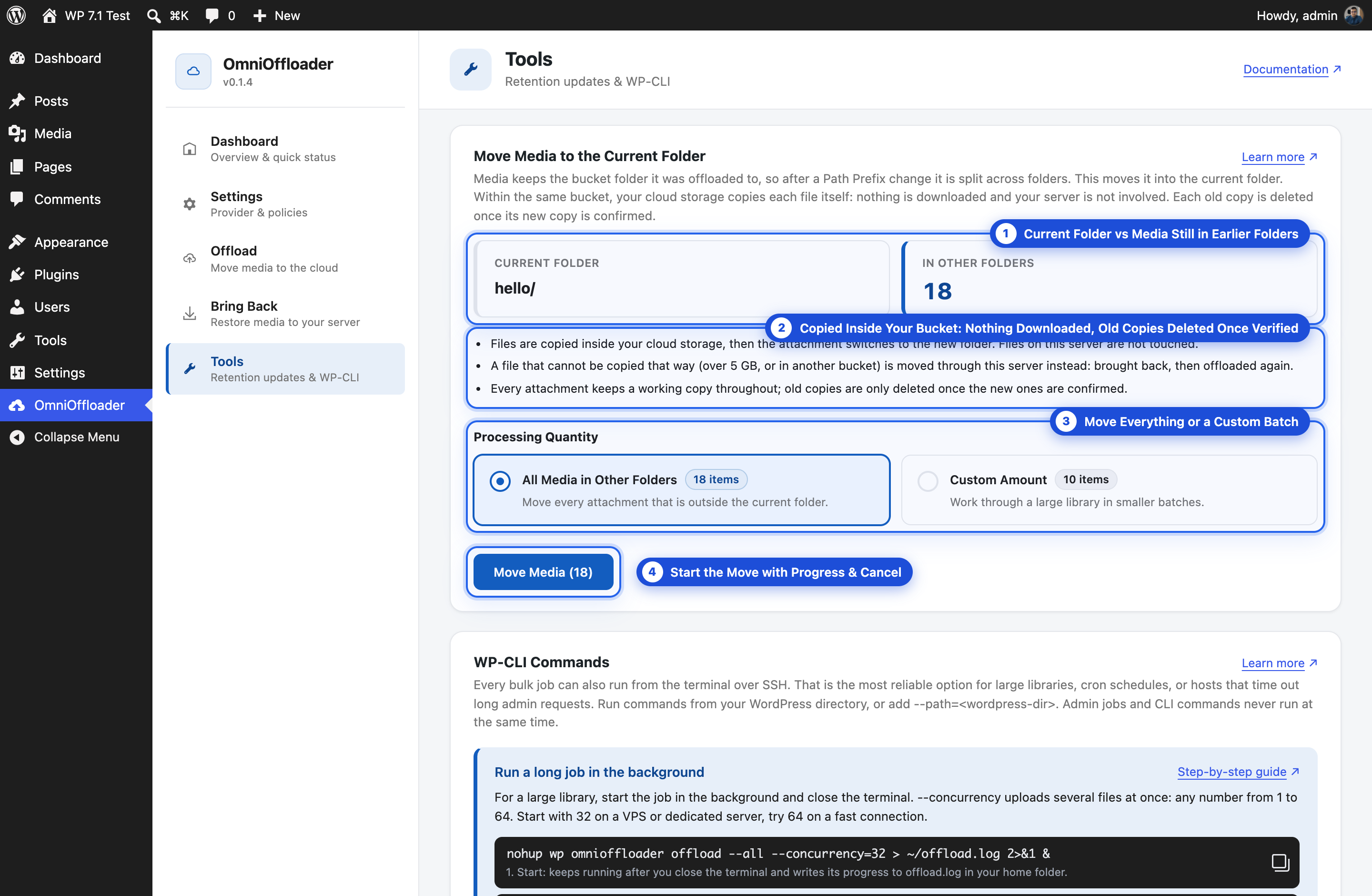
Each attachment remembers the folder it was offloaded to. After you change the Path Prefix, older media stays in the old folder and keeps loading from there. move brings that media into the current folder, so everything is in one place again.
For each attachment outside the current folder:
- Same bucket (the usual case after a Path Prefix change): your storage provider copies each of the attachment’s files into the current folder itself. Nothing is downloaded to your server, and the files on your server are not touched.
- The copies are checked, and the attachment switches to the new folder: its URLs change right away.
- The old copies are deleted.
When a file can’t be copied that way (larger than 5 GB, or the attachment is in another bucket or with another provider), that attachment is moved through your server instead: it is brought back, offloaded again into the current folder (your retention policy then cleans up the local files, as for any offload), and then its old copies are deleted.
Synopsis
Section titled “Synopsis”wp omnioffloader move (--all | --ids=<ids>) [--limit=<number>] [--keep-old] [--yes] [--dry-run] [--force] [--concurrency=<number>]Options
Section titled “Options”| Option | Description |
|---|---|
--all |
Move every offloaded attachment that is outside the current folder. |
--ids=<ids> |
Comma-separated attachment IDs to move. IDs already in the current folder are skipped. |
--limit=<number> |
Stop after this many attachments. |
--keep-old |
Keep the old copies in the old folder. |
--yes |
Skip the confirmation question (needed in the background). |
--dry-run |
List what would move, change nothing. |
--force |
Run even while a bulk job started from the admin screen is active. |
--concurrency=<number> |
Files copied (or downloaded and uploaded) at the same time, 1 to 64, instead of the Transfer Speed setting (at most 10). For a VPS or dedicated server; start with 32. |
Examples
Section titled “Examples”See what would move:
wp omnioffloader move --all --dry-runWould move 1240 attachment(s) into shop/: 53 Team photo (now in 2026/08/) 112 Product video (now in 2026/09/)Move everything in the background, 32 files at once, with a log file (see Long runs and log files):
nohup wp omnioffloader move --all --yes --concurrency=32 > ~/move.log 2>&1 &--yes is needed in the background, because nobody can answer the confirmation question there.
Follow it with wp omnioffloader status and stop it with wp omnioffloader stop. Run the same command again to continue: attachments already moved are skipped.
Safety
Section titled “Safety”- The old copies are deleted only after the new ones are confirmed in the bucket.
- If the new upload fails, the attachment stays on the server and loads from there. Run
wp omnioffloader offload --alllater to offload it. - Edit backups and other extra files that are not uploaded again keep their old copies.
- Old copies in a folder that another site took over are not deleted, because they may now be that site’s files.
- On a staging or development copy (Safe mode), the command refuses to run. A dry run still works.
Disk space and time
Section titled “Disk space and time”Within the same bucket, a move needs no disk space and no bandwidth on your server: the provider copies the files. Use --concurrency to run more copies at once.
Attachments moved through the server (another bucket, or a file over 5 GB) need room for one attachment’s files at a time:
| Retention policy | What each of those moves downloads |
|---|---|
| Retain Local Files | nothing: the files are already on the server |
| Smart Local Cleanup | the thumbnail sizes |
| Full Cloud Migration | every file of the attachment |
The command stops with a clear message when the server runs out of space.