
Retention Policies
A retention policy decides what happens to the files on your server after a successful offload. Set it in Settings → Retention Policy.
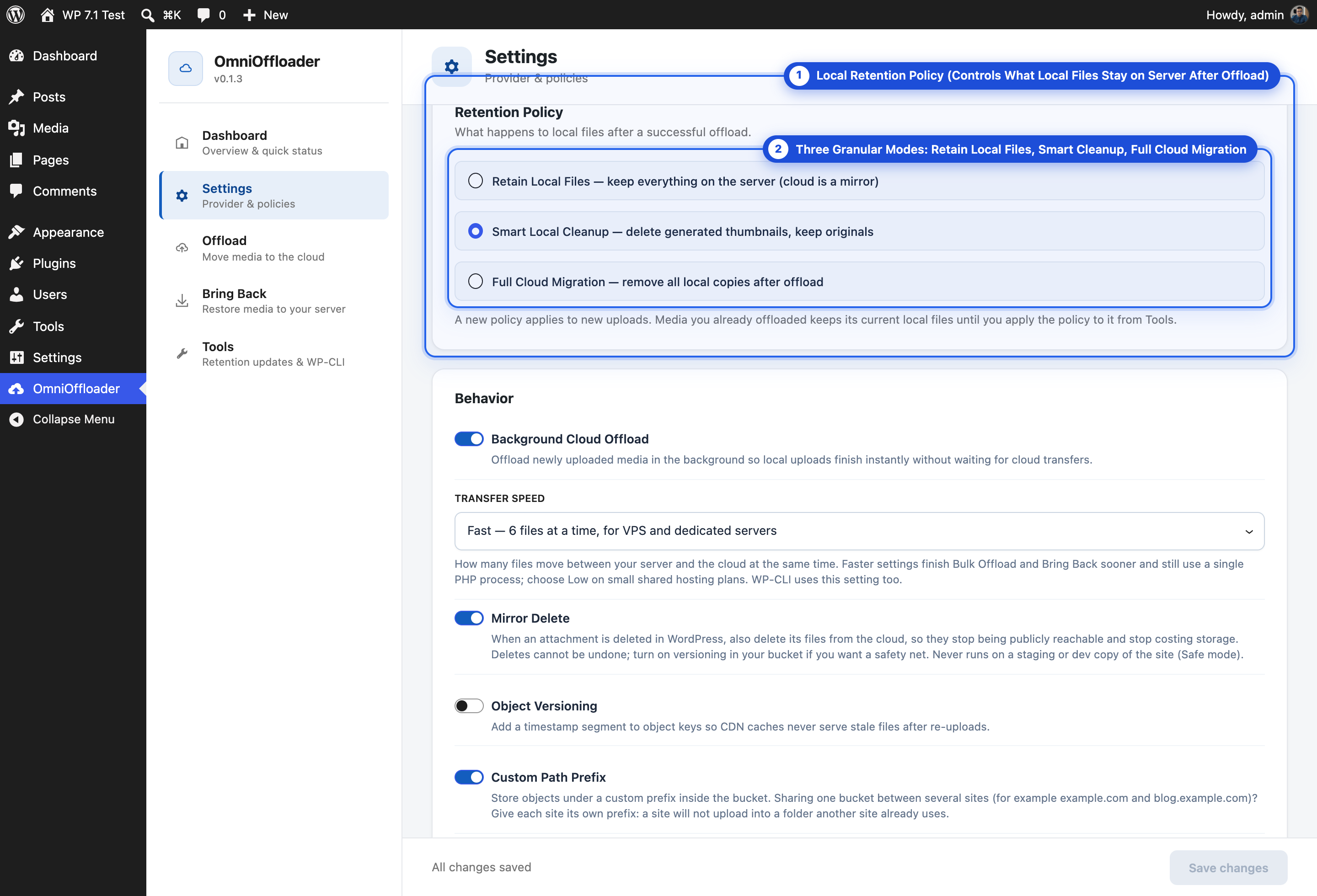
The three policies
Section titled “The three policies”| Policy | Originals on server | Thumbnails on server | Disk space saved | Best for |
|---|---|---|---|---|
| Retain Local Files (default) | Kept | Kept | None; the cloud is a mirror | Starting out, and the safest choice |
| Smart Local Cleanup | Kept | Deleted | Medium | Saving space while keeping originals for editing |
| Full Cloud Migration | Deleted | Deleted | Most | Freeing as much disk space as possible |
- Retain Local Files: keep everything on the server. The cloud is a second copy.
- Smart Local Cleanup: delete generated thumbnails, keep originals.
- Full Cloud Migration: remove all local copies after offload.
Things to know before cleaning up
Section titled “Things to know before cleaning up”- With Full Cloud Migration, originals only exist in the cloud. Image editing and thumbnail regeneration need Bring Back first.
- With either cleanup policy, run Bring Back before you deactivate the plugin. Otherwise your site would point at files that are no longer on the server.
- Your media keeps loading from the cloud either way. The policy only changes what is stored on your server.
When a policy is applied
Section titled “When a policy is applied”A policy is applied when a file is offloaded. So when you change the policy, it first only affects new uploads. Media you offloaded earlier keeps its current local files.
After you save a new policy, Settings shows a notice when existing media still follows an older one, with an Apply to existing media button.
Apply a policy to existing media
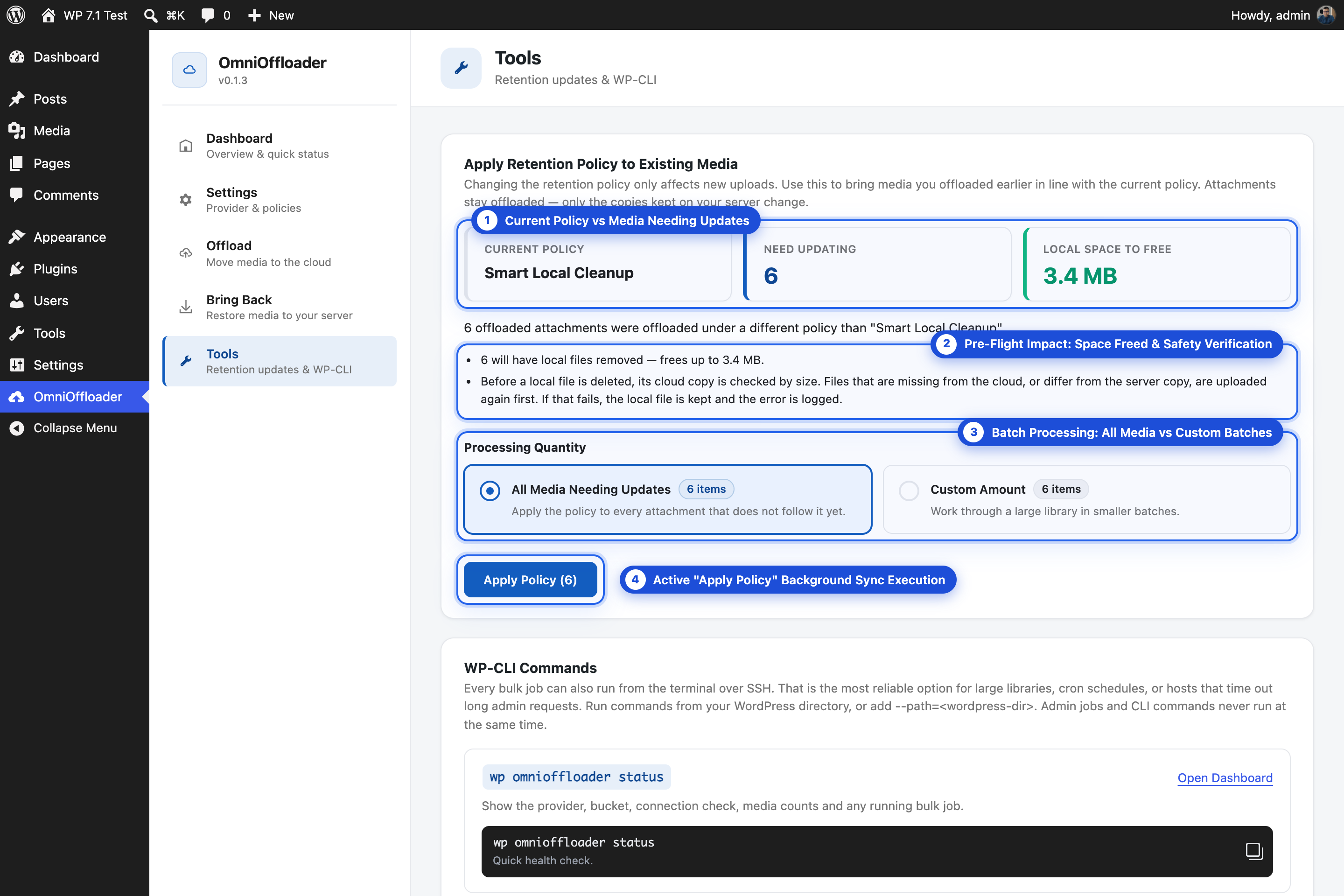
Section titled “Apply a policy to existing media”Open OmniOffloader → Tools → Apply Retention Policy to Existing Media. Attachments stay offloaded; only the copies kept on your server change.
-
Save the new policy in Settings first. Tools always applies the saved policy. If you have unsaved settings, Tools asks you to save them.
-
Read the preflight:
- Current Policy: the saved policy.
- Need Updating: how many offloaded attachments follow a different policy.
- To Clean / Download and Local Space to Free: roughly how much space is freed, or how much will be downloaded again.
-
Choose All Media Needing Updates, or a custom amount to work through a large library in smaller batches.
-
For Full Cloud Migration, tick the confirmation: “I understand that original files will only exist in cloud storage.”
-
Click Apply Policy. Follow the progress bar and activity log, or click Cancel to stop.
Moving to a stricter policy
Section titled “Moving to a stricter policy”For example, from Retain Local Files to Smart Local Cleanup or Full Cloud Migration. Local files are deleted, but only after a check:
- Before a local file is deleted, its cloud copy is checked by size.
- Files that are missing from the cloud (for example, thumbnails regenerated after the offload), or that differ from the server copy, are uploaded again first.
- If that upload fails, the local file is kept and the error is logged.
An attachment only counts as updated once every one of its files was handled. Failures are retried on the next run.
Moving to a looser policy
Section titled “Moving to a looser policy”For example, from Full Cloud Migration back to Retain Local Files. The missing local copies are downloaded again, while the attachment stays offloaded and keeps serving from the cloud. The preflight shows your free disk space and warns if it may not be enough.
From WP-CLI
Section titled “From WP-CLI”# Review what the saved policy would changewp omnioffloader retention --dry-run
# Apply the saved policy (asks before deleting)wp omnioffloader retentionSee wp omnioffloader retention for every option.
One job at a time
Section titled “One job at a time”A retention update never runs together with Bulk Offload or Bring Back, since they all read or delete the same local files. While it runs, single-item Bring Back is refused too.
For developers
Section titled “For developers”Keep specific attachments’ local files with the omnioffloader_should_apply_retention filter. See Hooks.