
Bulk Offload
New uploads are offloaded automatically. Bulk Offload is for the media that was already in your library before you set up OmniOffloader.
Open OmniOffloader → Offload. The page shows three numbers: Total Library Media, Already Offloaded and Local (Ready to Offload).
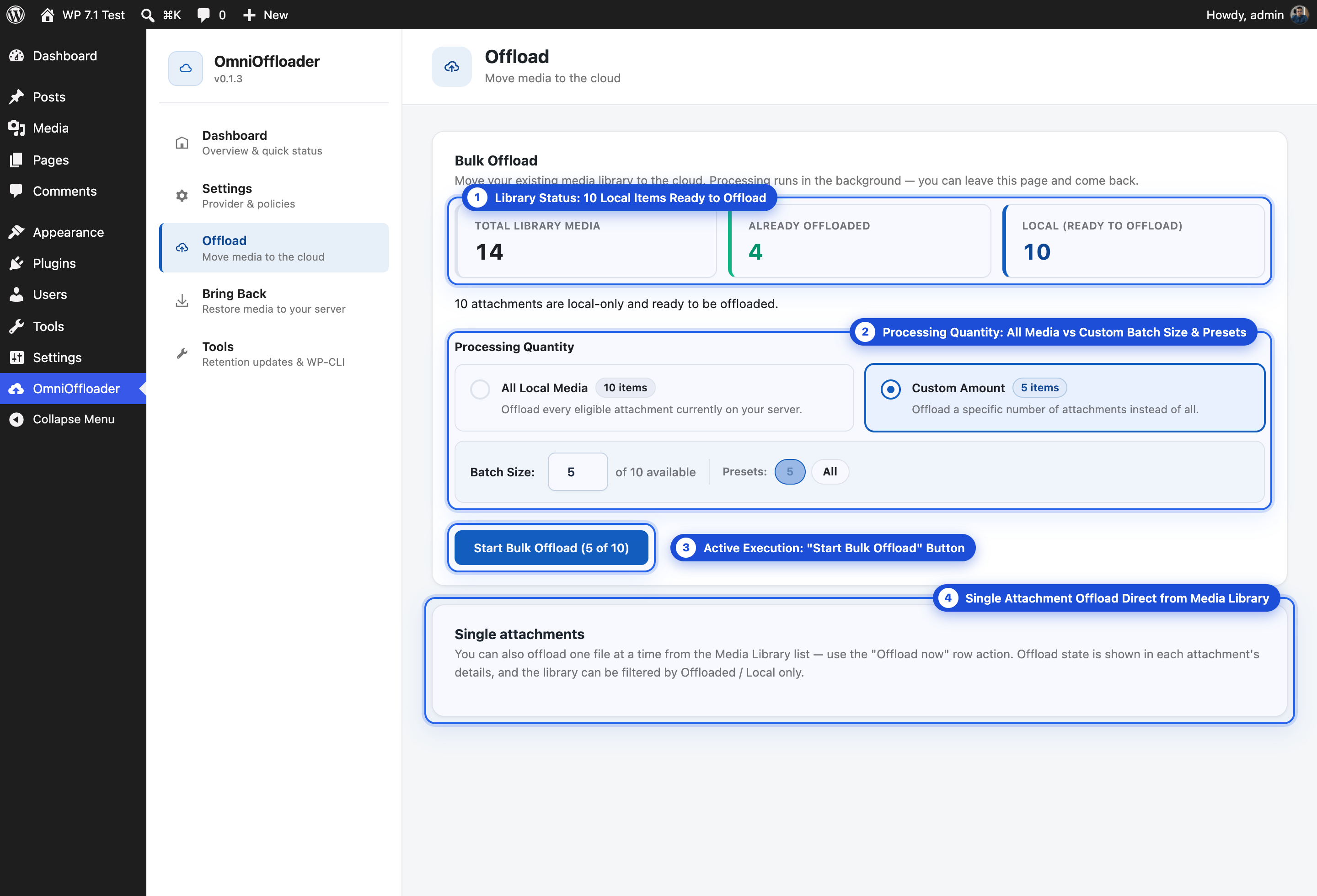
Start a bulk offload
Section titled “Start a bulk offload”-
Choose how much to offload:
- All Local Media: every eligible attachment on your server.
- Custom Amount: a set number. Pick a preset (5, 10, 25, 50, 100) or type any number.
-
Click Start Bulk Offload. The button shows how many attachments will run, for example Start Bulk Offload (25 of 1200).
-
Watch the progress bar and the activity log. Each attachment is listed as it finishes, and any errors are shown with the reason.
Can I close the tab?
Section titled “Can I close the tab?”Yes. The job runs in the background on your server and keeps going after you leave the page. You can come back at any time to see its progress.
Some hosts block WordPress’s internal “loopback” requests, which background jobs rely on. On those hosts, the open Offload page keeps the job moving instead. There, leave the page open until the run finishes, or use WP-CLI.
Cancel a run
Section titled “Cancel a run”Click Cancel at any time. The background worker stops right away. Attachments that were already offloaded stay offloaded. You can start again later, and the run continues with what is still local.
When things fail
Section titled “When things fail”A single broken attachment (for example, a file that is missing from the server) does not stop the run. It is logged, and the next attachment starts.
After 10 failures in a row, OmniOffloader checks the connection to your storage provider:
- The provider answers: the failures belong to the attachments themselves. The run carries on, and the errors stay in the log. It only stops after 100 failures in a row.
- The provider does not answer: the run stops with status Stopped and shows the provider’s error, so you can fix the connection.
Attachments that failed before are moved to the end of the next run, so they never hold up a restart.
A file that your host’s time limit cuts short is reported and skipped, never retried forever.
How many files move at the same time is set by Transfer Speed. A faster setting finishes sooner on a server that can handle it.
Large libraries
Section titled “Large libraries”For libraries of 5,000 items or more, the Offload page suggests the matching WP-CLI command. WP-CLI is usually faster, needs no open browser tab, and is not affected by web request time limits:
wp omnioffloader offload --allOne job at a time
Section titled “One job at a time”Only one bulk job runs at a time: Bulk Offload, Bring Back or a retention update. This applies whether the job was started from these screens, the Media Library or WP-CLI. Two jobs never touch the same files.
Single attachments
Section titled “Single attachments”You can also offload one file at a time from the Media Library. Use the Offload now row action. See Media Library.