
Media Library
OmniOffloader adds offload status and actions to the WordPress Media Library.
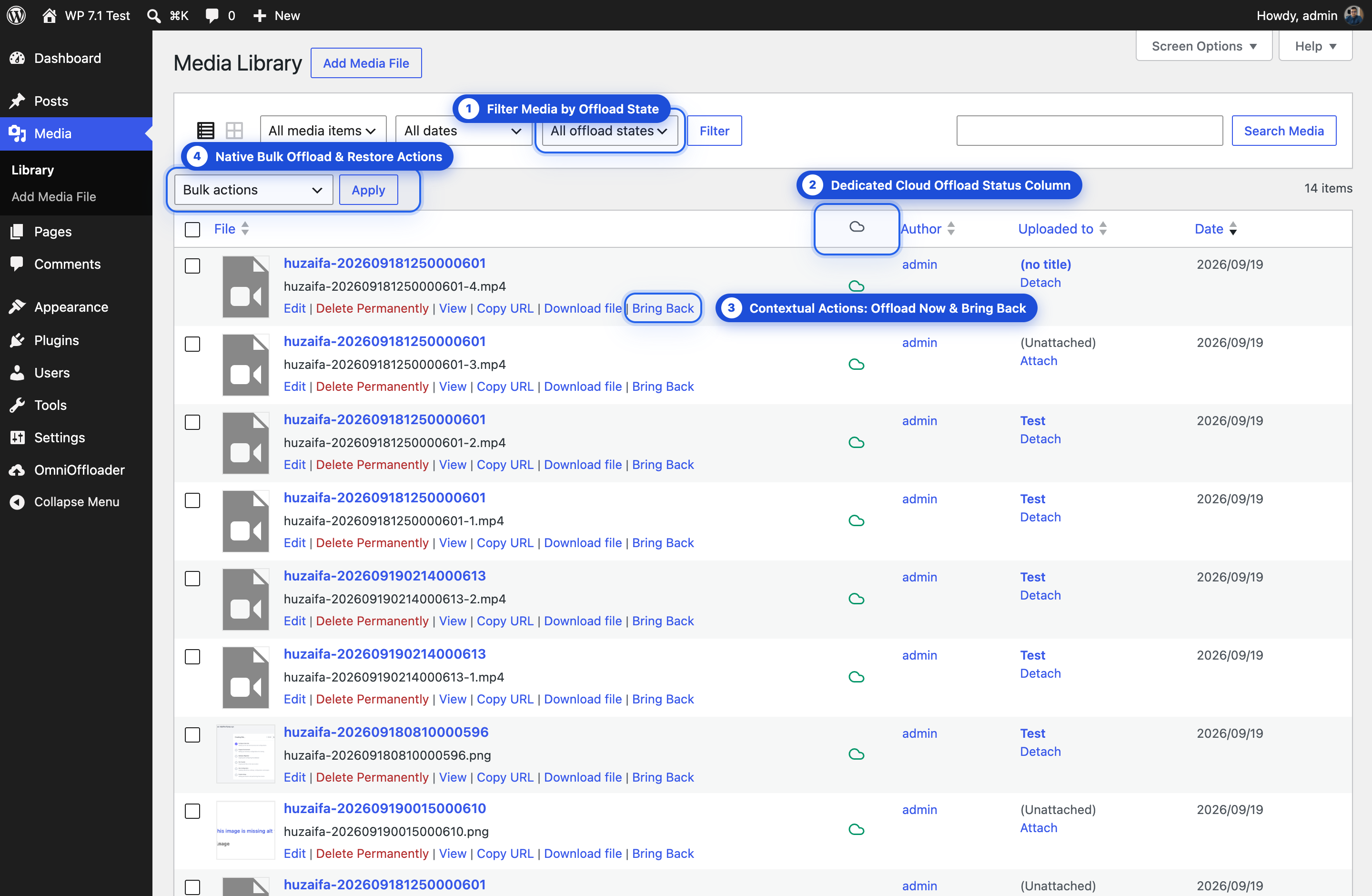
Status column (list view)
Section titled “Status column (list view)”The list view gets an Offload status column with a small icon:
- Offloaded: the attachment is in the cloud. Hover to see the provider.
- Offloading… / Restoring…: a transfer is running.
- Queued…: waiting for the background upload.
- Offload failed: hover to see the reason.
- Not offloaded: the attachment is only on your server.
The status updates live while a job runs. You do not need to reload the page.
Grid view badges
Section titled “Grid view badges”In grid view, the attachment details show the same live status.
Filter by offload state
Section titled “Filter by offload state”Use the filter dropdown above the list to show Offloaded or Local only attachments.
OmniOffloader box on the edit screen
Section titled “OmniOffloader box on the edit screen”When you edit an attachment, an OmniOffloader box shows:
- Provider: where the attachment is stored,
- Bucket:
- Offloaded on: the date and time,
- Local Storage: what is still on the server, for example Preserved on server (All files), Original kept (Thumbnails cleaned) or Removed from server (Cloud only),
plus one-click Offload now, Retry Offload or Bring Back buttons.
Row actions
Section titled “Row actions”Under each attachment title in list view:
- Offload now: upload this attachment to the cloud.
- Retry Offload: try again after a failure.
- Bring Back: restore this attachment to your server.
While a transfer runs, the action shows Offloading…, Restoring… or Queued… instead.
Bulk actions
Section titled “Bulk actions”Select several attachments, then choose from the Bulk actions menu:
- Offload to Cloud
- Bring Back to Server
You can select up to 1,000 attachments at once. For more, use Bulk Offload, Bring Back or WP-CLI.
Who can use these actions
Section titled “Who can use these actions”Offload and Bring Back are for administrators only (users who can manage options). This applies to row actions, the edit screen buttons, bulk actions and the REST API.
Other users keep their normal WordPress rights. They upload and delete their own media. With Mirror Delete on, deleting an attachment also removes its cloud copy.
On a staging or local copy
Section titled “On a staging or local copy”In Safe mode, the offload links and the Offload to Cloud bulk action are hidden. Bring Back is hidden too, unless you allowed it on a copy in Settings.